
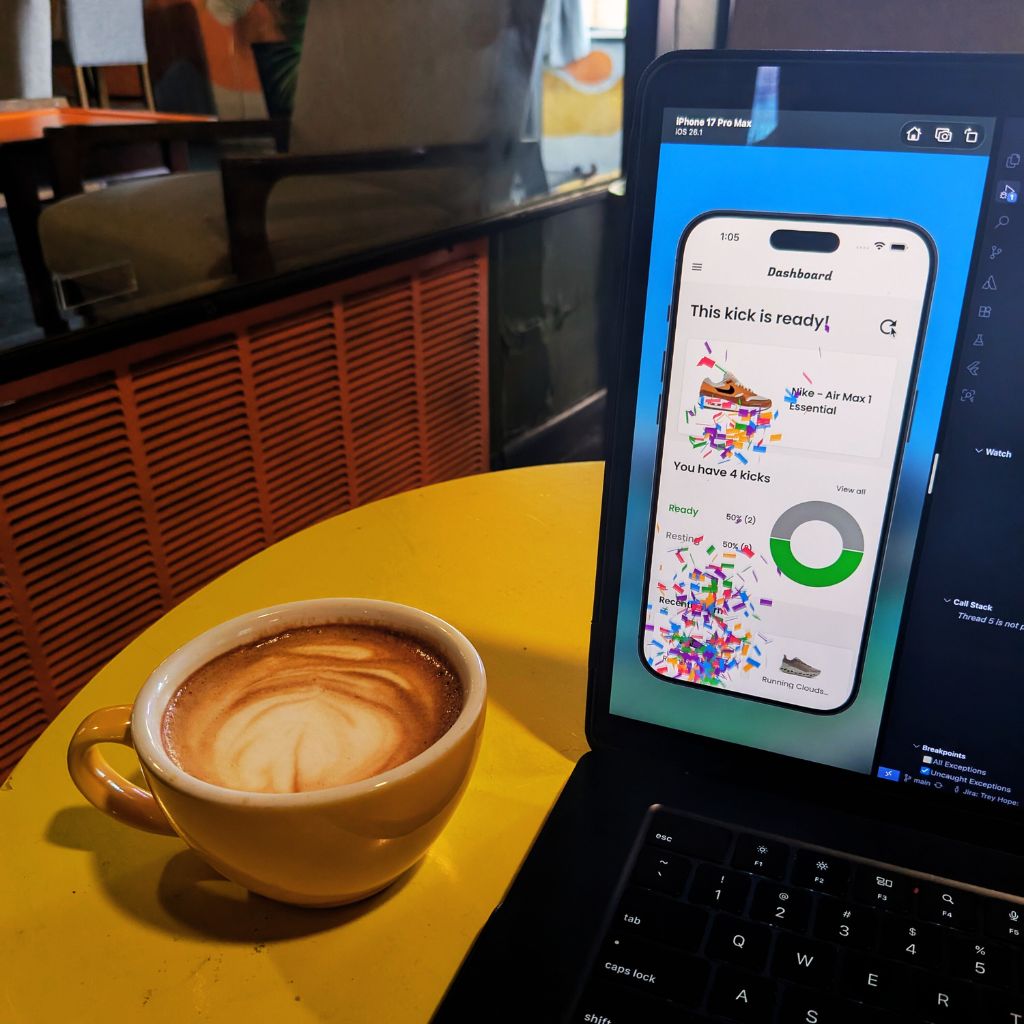
Signals Make UI Reaction Easier
State management has always been pretty straightforward for me. I choose the one that fits best at the time of development and stick with it for the entire process. Riverpod, Bloc, and even GetX all do exceptionally well in their own ways—but they can be quite cumbersome. Since their real purpose is to work with the business logic of an app, a constant challenge arises when you want to monitor the state of a text field or button. Simple problems require much simpler methods, and fortunately, Signals is where simplicity meets versatility.
What Is a Signal?
Simply put, a signal is a primitive of any type (such as an int, String, or MyClass) held in a reactive structure. When you read a signal's value inside a reactive context, you become a subscriber to that signal and get notified whenever the value changes. This updates all subscribers to that signal. Today I'll cover the big three when it comes to signals:
SignalfunctionsComputedfunctionsEffectfunctions
I'll show how these three have made my app, Kick Cycle, run smoother.
Signal Functions
A signal function holds and updates a single reactive value—it's the building block for the rest of the framework. My
KickPage is a StatefulWidget because I use the SignalsMixin, which requires a StatefulWidget extension.
Note: This mixin isn't required to use signals, but it helps clean up signals that are no longer in use.
Within the KickPageState, I create a signal for the shoe brand and a potential error to match. I then create a text field (using
shadcn) and apply the signals there. Whenever onChanged
is called, the brand updates, causing the signal to react and trigger a page rebuild.
class KickPage extends StatefulWidget {}

class KickPageState extends State<KickPage> with SignalsMixin {
	late final brandSignal = createSignal<String?>('Nike');
	late final brandErrorSignal = createSignal<String?>(null);

	@override
	Widget build(BuildContext context) {
		...
		ShadInputFormField(
			initialValue: brandSignal.value,
			onChanged: _brandOnChanged,
			label: const Text('Brand'),
			placeholder: const Text('Enter the brand'),
		),
	}

	void _brandOnChanged(String val) {
		brandSignal.value = val;
		val.isEmpty
			? brandErrorSignal.value = 'Cannot be empty'
			: brandErrorSignal.value = null;
	}
}
As you can imagine, this approach is much simpler for updating a select dropdown's state than storing the country value in a bloc. The bloc becomes less convoluted and focuses on what matters most—the business logic.
Computed Functions
Building on signals, there are computed functions. They derive a value from other signals (sort of like a formula) and recalculate
only when their dependencies change.
A perfect use case would be a boolean value that evaluates to true if the form is complete.
class KickPageState extends State<KickPage> with SignalsMixin {
	late final formIsValid = createComputed(() {
		if (brandSignal.value?.isEmpty ?? true) {
			brandErrorSignal.value = 'Cannot be empty';
			return false;
		}
		return true;
	});

	@override
	Widget build(BuildContext context) {
		...
		ShadButton(
			child: const Text('Submit'),
			enabled: formIsValid.value,
			onPressed: () async {
				// Submit form data
			},
		),
	}
}
Now I can enable or disable the submit button based on the formIsValid value.
Effect Functions
Last but certainly not least, there are effect functions. These are very similar to computed functions, only they’re not assigned to values. It’s best to use them whenever you only want to
track when signals change without needing a value, (displaying modals or logging for analytics for example).
For this part, I thought it would be cool to add en easter egg into the app. On the
DashboardPage of the app, if the user presses the refresh button enough times, a blast of confetti comes down from the top.
class DashboardPage extends StatelessWidget {
	final _confettiController = ConfettiController(
		duration: const Duration(seconds: 10),
	);

	final Signal<int> refreshCount = Signal<int>(0);

	DashboardPage({super.key}) {
		effect(() {
			if (refreshCount.value == 10) {
				_confettiController.play();
			}
		});
	}

	@override
	Widget build(BuildContext context) {
		...
		IconButton(
			onPressed: () => refreshCount.value++,
			icon: Icon(
				Icons.refresh,
				size: buttonSizesTheme.icon!.height,
			),
		),
	}
}
Note: If you’re familiar with Bloc, the effect function will feel very similar to a listener.
Signals For the Win!
The idea of signals making UI updates more straightforward is very exciting for me as a Flutter developer. Business logic can become confusing when trying to maintain states for things that don't truly require the overhead. Of course, it's up to the developer's discretion when to use signals over conventional state management—or use them together like I do. A good rule of thumb: if you only need to "react" to UI updates (i.e., drop-downs, checkboxes, error messages), signals is your best bet.
The app is available for iOS and Android—download it today and let me know what you think.
Thanks for reading
I hope you found this article helpful—if so, please share it!
Coffee Break: Toasted Mushroom Mocha
Have you ever had a mushroom infused coffee? Neither have I, but this one was pretty good. The mushroom flavor was strong but not overpowering; the mocha balanced it out well. Plus you'll have a mellow vibe the whole day.
7/10